Are you looking for a way to stop your streaming bill this month? You are in the right place! Many people love watching great shows, but sometimes we just need to take a break. Maybe you finished your favorite series, or perhaps you want to save some extra cash. Whatever your reason is, knowing how to cancel hbo max should not be a headache. In this guide, I will show you exactly how to do it on every device you might own.
Streaming services are fun, but they can add up fast. I remember when I first tried to find the “cancel” button on my own account. It felt like I was playing a game of hide-and-seek! That is why I wrote this for you. We will go over the steps for your computer, phone, and even your smart TV. Let’s get started so you can get back to your day without worrying about extra charges.
Quick Summary of Cancellation Methods
| Billing Provider | Where to Go | Main Action |
| HBO Direct | HBOMax.com | Settings > Subscription |
| Apple (iOS) | iPhone Settings | Tap Name > Subscriptions |
| Google Play | Play Store App | Payments & Subscriptions |
| Amazon | Amazon Account | Memberships & Subscriptions |
| Roku | Roku Home Screen | Options (*) > Manage Sub |
| Hulu | Hulu Account Page | Manage Add-ons |
How to Cancel HBO Max on a Computer
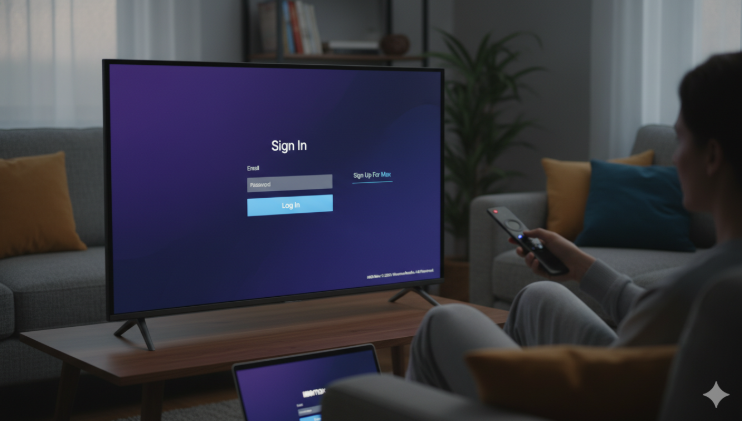
If you pay HBO directly, using a web browser is the fastest way to leave. First, open your laptop and go to the official website. You will need to sign in with your email and password. Once you are in, click on your profile icon in the top right corner. From there, look for the “Subscription” tab.
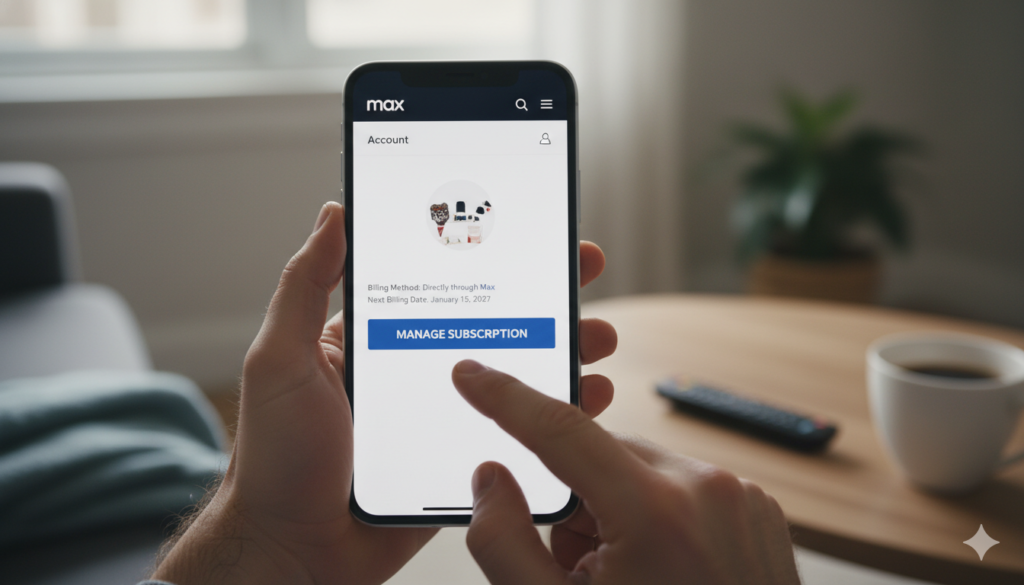
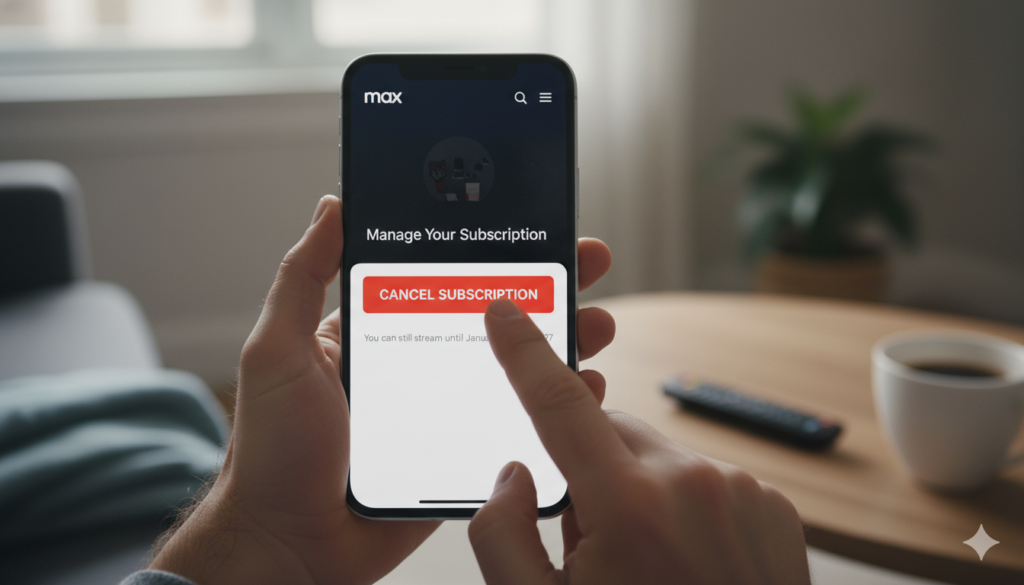
Inside the subscription area, you will see a button that says “Manage Subscription.” Click that, and then look for the option to “Cancel Subscription.” The website might ask you why you are leaving. You can pick any reason or just skip it. Make sure you click “Confirm” at the end. You should get an email right away telling you that you are all set.
Canceling Through Your iPhone or iPad
Many people sign up for shows using their Apple ID. If you did this, you cannot cancel on the HBO website. Instead, grab your iPhone and open the “Settings” app. Tap on your name at the very top of the screen. This is where all your personal account info lives.
Next, tap on the “Subscriptions” button. You will see a list of everything you pay for. Find HBO Max in that list and tap it. At the bottom, there will be a big red button that says “Cancel Subscription.” Tap it and confirm. Even after you do this, you can usually keep watching until your current month ends!
How to Cancel HBO Max on Android Devices
Using an Android phone makes things just as simple. You will need to use the Google Play Store app. Open the app and tap your profile picture in the top right corner. A menu will pop up. Look for “Payments & Subscriptions” and tap on it.
Next, go into the “Subscriptions” section. Find the HBO Max icon and tap it. You will see an option that says “Cancel subscription” at the bottom. Follow the prompts to finish the process. Google is very good about sending a receipt to your Gmail, so keep an eye out for that confirmation.
How to Cancel HBO Max via Amazon Prime
Did you add HBO as a “Channel” on your Amazon account? This happens a lot! To stop this, you need to go to the Amazon website. Log in and hover over “Account & Lists” at the top. Click on “Memberships & Subscriptions.”
You will see a list of all your active channels. Find HBO Max and select “Cancel Channel.” Amazon might try to offer you a discount to stay, but if you are sure, just keep clicking the cancel buttons. It is a very common way to handle how to cancel hbo max if you like keeping all your bills in one place.
Stopping Your Subscription on Roku
Roku is a great way to watch TV, but canceling can be tricky if you don’t know where to look. You can actually do it right from your TV screen! Highlight the HBO Max app on your home screen. Do not open it; just stay on the icon.
Press the “Star” button (*) on your remote. A menu will appear on the side. Select “Manage Subscription” and then choose “Cancel Subscription.” You can also do this on the Roku website if you prefer using a keyboard. Both ways work perfectly to stop future payments.
Managing HBO Through Your Hulu Plan
If you have a Hulu bundle, your billing is handled by Hulu. You won’t find a cancel button in the HBO app. Instead, log in to your Hulu account on a computer. Go to your “Account” page and scroll down to the “Add-ons” section.
Click on “Manage Add-ons.” You will see a checkmark next to HBO Max. Change that checkmark to an “X” or uncheck the box. Click “Review Changes” and then “Submit.” This removes the “extra” from your Hulu bill while keeping your main Hulu account active.
What Happens After You Cancel?
One question I get a lot is, “Will I lose access right away?” The answer is usually no! Most of the time, you can keep watching until the day your next bill was supposed to happen. This is great because you already paid for that time.
For example, if you pay on the 1st of the month and cancel on the 10th, you can still watch movies until the 30th. It gives you plenty of time to finish that one show you started. Just remember that once that date passes, your account will switch to “Expired.”
Can You Get a Refund for HBO Max?
Getting your money back is much harder than just canceling. Most streaming services have a “no refund” policy for partial months. If you forget to cancel and get charged, you can try to contact customer support, but they rarely say yes.
The best way to avoid this is to set a reminder on your phone. If you know you only want the service for one month, you can actually cancel the very same day you sign up! You will still get your 30 days of watching, and you won’t have to remember to do it later.
Checking Your Billing Statement
If you are confused about who is charging you, check your bank app. Look for the name on the charge. If it says “HBO Max,” you pay them directly. If it says “Google,” “Apple,” or “Roku,” then you must use their specific steps to stop the bill.
I have seen many people try to cancel on the website when they are actually billed through their phone company. Always double-check your bill first. It saves a lot of time and prevents you from thinking you canceled when you actually didn’t!
How to Restart Your Subscription Later
The best part about digital TV is that nothing is permanent. If a new season of your favorite show comes out next year, you can come back! All your watch history and “My List” items are usually saved for a few months.
To come back, just log in with your old email. The app will ask if you want to renew. One click and you are back in the action. This flexibility is why so many people choose to learn how to cancel hbo max during the “off-season” of their favorite hits.
Frequently Asked Questions
Can I cancel HBO Max on my smart TV? Yes, if you signed up through the TV’s app store (like Roku or Samsung), you can usually find the subscription settings in the TV’s main menu.
Why is there no cancel button in my app? If you don’t see a cancel button, it means you are likely billed by a third party like Apple, Google, or your internet provider. Check your email for a billing receipt to find out who.
Does deleting the app cancel the subscription? No! Deleting the app only removes it from your phone. You will still be charged every month until you follow the cancellation steps in this guide.
Can I pause my HBO Max subscription? Currently, HBO does not have a “pause” button. You have to cancel and then resubscribe when you are ready to watch again.
What is the best time to cancel? The best time is at least 24 hours before your next billing date. This ensures the system has time to process your request so you aren’t charged again.
Will I lose my profiles if I cancel? Usually, your profiles and settings stay saved for a short period. If you resubscribe within a few months, your data should still be there.
Conclusion
Learning how to cancel hbo max is a smart move for your budget. Whether you are switching to a new service or just taking a break, the steps are simple if you follow the right path for your device. Remember to check your email for that final confirmation! If you found this guide helpful, feel free to share it with a friend who might be looking to save some money this month too. Happy streaming—or happy saving!